Showing posts with label facebook. Show all posts

Saturday, May 26, 2012

How to Sync all your Calendars - Part 2 - Facebook & Tripit calendars


In my last post, I explained details of the following:

·         Set up a common calendar
·         Linked it to my Android phone
·         Linked it to Shyamala’s phone (iPhone)
·         Have a common calendar on our PC at home 

 In order to have a complete all-in-one calendar linked to our phones and the PC at home, I had to include events from facebook and travel itineraries from tripit.

Automatically include our travel itineraries including flights and hotel bookings
Tripit is a really handy website to organise travel plans into an itinerary. This is especially useful if you are a DIY traveller like me who organises and purchases your own flight/hotel/tour bookings from various sites. Once you receive the confirmation and receipts from a travel site, you simply need to email that to plans@tripit.com and Tripit is smart enough to pick up all the information from the email and build your itinerary.
Tripit has its own iPhone/Android app. However, I was determined to add these schedules to my calendar. Tripit has the details for this on this link - http://www.tripit.com/uhp/calendarInfo
  • Get your iCal feed .
  • Copy the URL.
  • Open a new browser window and go to Google Calendar. Click on the dropdown button (or the "Add" link in the old Google Calendar version) in the "Other Calendars" section on the left-hand side.
  • Choose "Add by URL".
  • On the pop-up, paste the URL in the selected text field.
  • Click "Add Calendar" to finish.

Once setup, the travel itineraries show up on Google Calendar:

Automatically include Facebook events
Last step was to make sure my facebook events are included in the calendar.


  • ·         Go to Facebook events
  • ·         Click on drop down menu next to the “Create event” button and select “Export Events..” 
 
  • ·         Copy the URL
  • Go to Google Calendar and add the above link following the similar steps to the above tripit-Google calendar addition. Once done, your facebook events show up on your calendar:
Once done, your facebook events will be displayed on your Google calendar (and your mobiles via Google Calendar)

Google is smart enough to colour code various calendar - In my case, Facebook events are highlighted in Orange and Tripit in Green.
I am still not happy with all facebook events including declined facebook events showing up. I'm in the process of checking how this can be fixed.
 Unfortunately, the facebook and Tripit events dont flow through to the Windows Live Calendar widget on my desktop (explained in my previous post). The reason for this is the Google iCal output does not share the events from external calendars. In order to fix this, the iCal URLs need to be added directly to the Windows Live Calendar widget as per my previous post. Any suggestions to improve these techniques will be great! Enjoy! :-)

Tuesday, May 22, 2012

How to Sync all your Calendars - Part 1 - Google, iPhone, Android and Desktop calendars


Lately, I have been on a mission to set up a common calendar for Shyamala and I to share and to integrate our personal calendars, Facebook calendars and travel itineraries so it’s all in one common calendar . With some research and Googling, I’ve managed to do the following:
·         One common calendar
·         Link it to my Android phone
·         Link it to Shyamala’s iPhone (clearly I have a better phone than Shyamala :) )
·         Have a common calendar on our PC at home
·         Automatically include our travel itineraries including flights and hotel bookings
·         Automatically include Facebook events
Not sure if this means I’ll manage my time better, but it certainly does help with it and with planning our schedule. Now for the details:
One common calendar
I needed a fairly straight forward calendar with good integration with phones and other apps. The choice was fairly obviously. I signed up for a Google Calendar account. This was a fairly straight forward process.
Syncing with the Android Phone
Android users are in luck. The setting up of a Google account/calendar is quite straight forward. If your Google calendar account is the same as the gmail account you used when you set up your phone, all of your calendars will automatically sync with the phone. In my case, the gmail account I use on my phone is different to the common calendar I set up recently.  So I had to add the new calendar.
To make life easier, I’ve also added two of the below HTC calendar widgets: 

Syncing with the iPhone
Unfortunately, this is a little more complicated than Android! (Another reason to use Android :) )
Go to Settings > Mail, Contacts, Calendars, click Add Account and create a new Microsoft Exchange Account -- not the Gmail option (yes!!! Weird!). Leaving the 'Domain' field blank, enter your Google account details in 'Username' and 'Password,' tap 'Next,' and add m.google.com as the 'Server' field on the following screen. Next, you'll be prompted for the services you'd like to sync. If this is your first time setting up mail, contacts or your calendar, go ahead and select all three.

If you are using multiple calendars open Safari to choose which Google Calendars you require. Use your account details to log in to m.google.com/sync on your phone, and select the device you're using. Tap the button next to each calendar you want on your phone, and press 'Save' once you're satisfied. Wait a few seconds, boot up the iOS Calendar app, and your Google calendars, now fully editable, will download from the Web.
If you are assuming multiple iPhones or iPads, you just need to follow the above steps on all of it. You can customize your sync settings on each device.
Have a common calendar on our PC at home
I wanted the calendar to be setup on our laptop at home. Ideally, I was looking for a desktop ‘widget’ that will load at startup on my Windows7 laptop and display the calendar... that is exactly what I found here (Not sure what Microsoft was thinking when they removed Windows Calendar from Windows7!!)
This Windows Live Calendar Gadget allows syncing from Windows Live, Google Calendar or any other calendar (including Facebook and tripit – more details below). It also allows you to sync more than one calendar! – Just what I needed.
1. Go to Google calendar > settings > Calendar tab and select the Calendar you wish to sync:
2. Under ‘Private address’, click ICAL and copy the URL:

3. Go to the Windows Live Calendar Gadget > options and paste the URL.

You can choose various the sync interval, reminder options and pick one of the three skins currently available:
Once it is setup, it sits really nicely on the desktop:

I hope this helps someone..
I've also linked my facebook events and travel itineraries (via tripit) to the above calendar (and the phones). I'll explain how I did that in the next blog.


Tuesday, March 15, 2011

Linking Garmin Connect, Blogger, Twitter, Facebook – Part 2 (Publishing Garmin Race info to Twitter and Facebook)

(Click on the screenshots if they aren't clear)
In my previous post, I shared details on how I update my blog automatically to include Garmin output from my races. In this post, I've listed the instructions on how I publish my Garmin info from my races to Twitter and Facebook (automatically).

Currently, every time I'm done with a race (and I download the Garmin output), My Twitter account is updated is..

And my facebook status is updated too..

Both of the above happens automatically once I download the Garmin output. Similar to my earlier post, this works off RSS feeds too. The earlier post contains the information on where to find the RSS feed link to your Garmin and how to set the privacy so only the "Races".

Updating Twitter with Race infoThis was done using twitterfeed – A very straightforward site/tool to retrieve new info from a RSS feed and 'tweet' that info. Step 1 was to enter the RSS address:

Step 2 was the 'fun' part. In the 'Post Prefix' field, enter whatever you want to say before the Garmin link appears on your tweet and facebook status. In my case, I entered 'My race info..'


Post suffix field must be set to end with "#fb". This is required to update facebook.


Final step is to enter and authenticate your twitter account. Once completed, any new races will automatically appear in twitter in the following format – "My race info..(Race name) (Garmin Link) #fb"


Updating Facebook with Race infoThis was done, using Facebook's "Selective Tweets" application. This is another straight forward app, which lets to update your facebook status automatically twitter. However, unlike some apps, this only updates facebook status with tweets that end with "#fb".


Once done, your Garmin race info flows automatically to facebook too :

So in a nutshell, after a race, all I do is download my Garmin output, update my Race name, 'unlock' that particular activity. The twitter update, my blog update and facebook update is all done automatically.

Facebook and Twitter does have a few RSS-related apps which lets you auto-tweet / update your status. However, every other app I tried had a considerable amount of time delay or was unreliable (Some of them took upto 24 hours to update). The above method of linked Garmin to > Twitter to > Facebook seemed to be the quickest and efficient.

This technique is not unique to Garmin RSS and can be used to any other similar functionalities too. I've also used the same to update twitter and facebook everytime I update my blog..


Enjoy :)

Saturday, March 5, 2011

Linking Garmin Connect, Blogger, Twitter, Facebook – Part 1 (Updating my blog to include Garmin output from my races)

After a bit of trial and error & a lot of Googleing, I've finally managed to integrate Garmin Connect, Blogger, Twitter and Facebook together. I have now managed to do the following :

  • Automatically update my blog to include Garmin output from (only) my races :
  • List my latest tweets on my blog

  • Automatically update Twitter and Facebook of any new blog entries
In this post, I'll try to explain how I managed to get the Garmin output of my Races to appear on my blog. I'm sure most of the above could be done without too much hassle and in very little time by someone who is tech savvy. But considering it took me a lot of Google'ing and a lot of trial & error, I thought it's only fair to share it in the hope it might help someone else..
Setting up Garmin Connect to display and Feed Garmin info only from your racesThis is the only initial setup that is required. This has been driven in the back end using RSS feeds from the Garmin connect site. The Garmin connect RSS feed can be obtained from the "Dashboard" tab in garmin connect:
Clicking on it will give you the link to your RSS feed -
http://connect.garmin.com/feed/rss/activities?feedname=Garmin%20Connect%20-%20dineish&owner=dineish
Accessing this link will give you details of every single workout. However, I only wanted info of my races published – I really did not want to annoy my Twitter and Facebook friends by publishing every single workout of mine (I think I annoy the non-runners enough already). This was fixed by playing around with the security settings on Garmin connect. By default, all activities on Garmin are set to "Public" which allows sharing of the activities (which resulted in RSS feed having all activities).

I changed the default privacy to "PRIVATE". This can be done by clicking on SETTINGS > DEFAULT PRIVACY and selecting PRIVATE. This will ensure all activities are now locked.


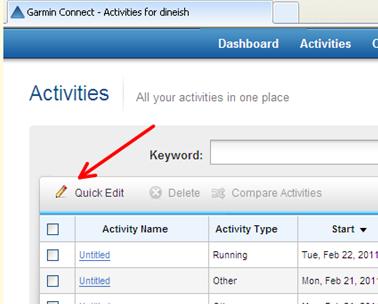
All I have to do now is, every time I want info from a race published, I have to "unlock" just that particular activity. This can be done in the "Activities" tab by selecting "Quick Edit" .

This will give you the option to unlock the activities you wish to publish (under the privacy column). You can also add the description, activity type and event type as required on this screen.
Once done click on FINISH and TADA! Your RACE info is the only info on your RSS Feed link!!! (TIP – be VERRRYYY patient for the initial changes to be updated in the RSS feed. It could take upto a day or two at times)
Now that the RSS feed is displaying only the RACE info, things get a lot easier and we could set up the fun stuff.
Burning your feed using feedburnerYou can use feedburner to "burn" your feed. This is supposed to help you with allowing users to subscribe and provides traffic analysis etc. etc. , but for me the most useful part was that it gave me a much shorter and nicer link to my garmin output feeds - http://feeds.feedburner.com/GarminConnect-Dineish
Automatically update my blog to include Garmin output from (only) my racesI used BuzzBoost in Feedburner for this. This can be done by using "Use as a widget" option. You can also use BuzzBoost to set up a similar widget to any site.

Buzzboost also gives a HTML script that you can copy and paste to any other blogging sites or your own web site.


This sets up a nice column on my blog containing info from my recent races...

In the next post, I'll share the instructions on how to
automatically update twitter and facebook with my garmin output from my races and new blog entries..